One-Time Schedule for AI Agents: Start a Task Later
Most talk about scheduling agents is about cron: run this every morning, check that every hour. Recurring jobs are useful, but a lot of real work is not recurring. It just isn't ready yet.
The deploy freeze lifts on Monday at 9:00. The API you depend on ships its new version tomorrow at noon. A customer asked for a follow-up in two weeks. The work is clear today. It just has to start later.
AgentRQ's Task Scheduling handles both cases. This post is about the second one: the one-time schedule. You write the task now, pick a launch date and time, and AgentRQ starts it at that minute. Your agent picks it up as if you had just created it.
How It Works
Every task composer has a calendar button next to the YOLO toggle. Click it and an Execution Strategy popover opens with three choices: None, One-time and Repeated.
Pick One-time and you get a single field: Launch Date/Time. Choose the date and time in your own time zone and save the task. That's it.
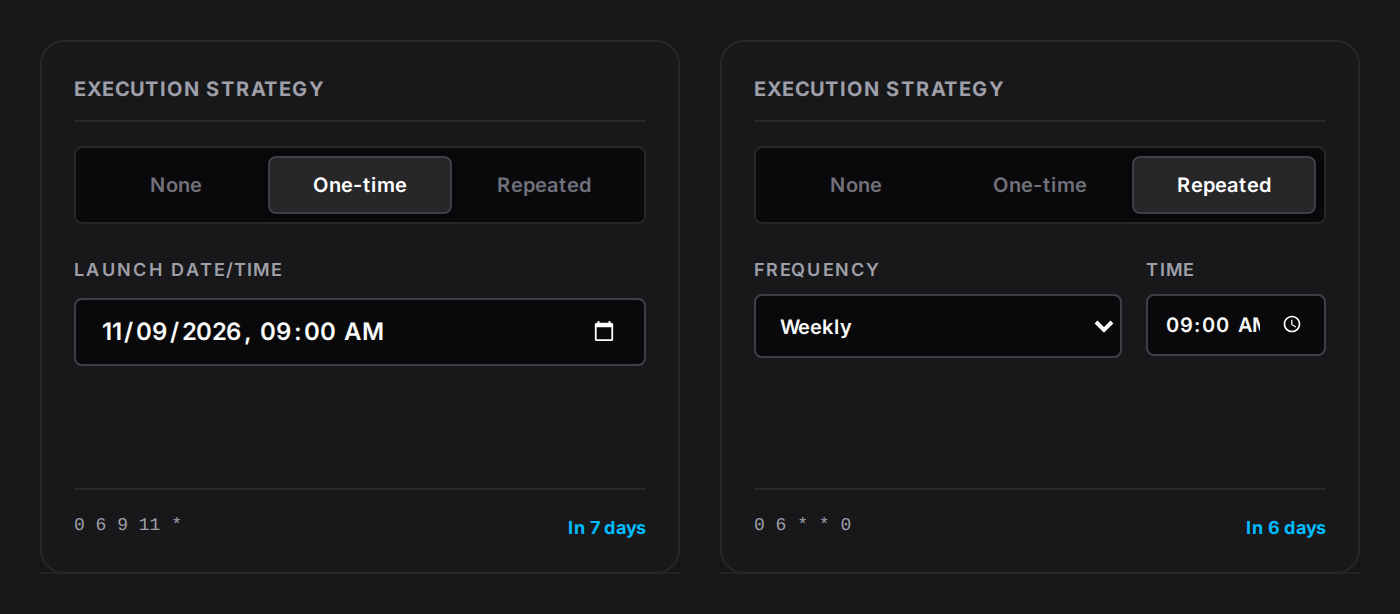
Compare that with Repeated, on the right: a frequency (every 15 minutes up to monthly, or custom days) and a time of day. A repeated task comes back on that cadence. A one-time task runs on the date you picked, and then it is done.
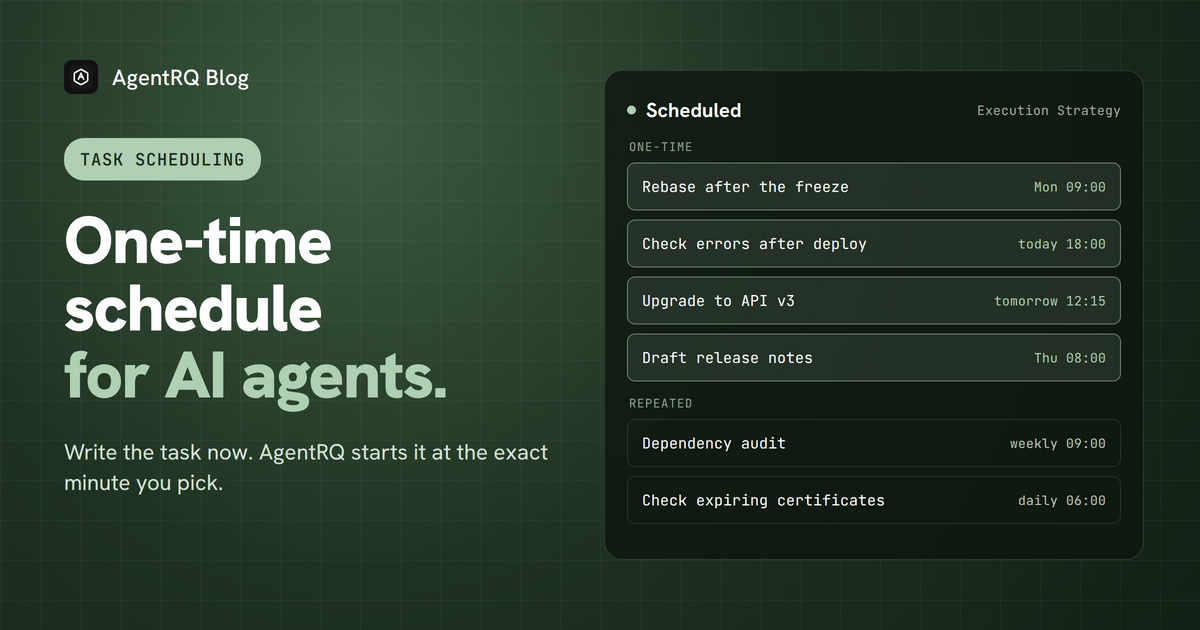
The task doesn't go to the agent yet. It waits in the workspace's Scheduled view, marked ONE-TIME, with the date and time it will start and how long until then. Until it starts, you can open it and change the title, the instructions, the assignee or the launch time, or delete it.
AgentRQ checks for due schedules every minute. When the launch minute comes, the task moves to Not Started on the task board and your connected agent is notified, just like a task you created by hand. From there it is an ordinary task: the agent works on it, replies, asks you questions and completes it.
One Task, Not a Template
A recurring schedule is a template. Each time it fires, it creates a new task, and the template stays behind for the next run.
A one-time schedule is different. There is no template and no copy. The task you wrote is the task that runs. It keeps its link, its attachments, its YOLO setting and whatever event or workflow you set to run when it completes. When it starts, the schedule is removed, so nothing is left in the Scheduled view and nothing will fire again.
That means you can share the task's link the day you write it, and it will still point to the same task when the work is done.
How It Differs from a Loop
The other common way to make an agent do something later is a loop: keep the agent running and have it wait, check, and wait again. Claude Code's /loop, a "sleep and check again" prompt and a shell script that reruns the agent every few minutes all work this way.
Loops are the right tool for watching something that changes, like a CI run or a deploy. They are the wrong tool for work that should start once at a known time. Here is the difference.
A loop needs the agent running the whole time. The session has to stay open from now until the work starts. Close the laptop, restart the terminal or lose the connection, and the loop is gone. A one-time schedule lives in AgentRQ, not in the agent. Nothing has to run while the task waits.
A loop spends tokens on waiting. Every wake-up is a turn: the agent reads its context, decides it is not time yet and goes back to sleep. A one-time schedule costs nothing until it fires, then the agent gets one task.
A loop carries the old context with it. When the work finally starts, the agent is deep in a long session full of earlier turns. A scheduled task starts like any new task, so the agent begins with just the instructions you wrote.
A loop is invisible. It lives inside one agent's terminal. A one-time task sits in the Scheduled view where you, your team and other agents can see it, open it, change it or cancel it.
A loop belongs to one agent. A scheduled task belongs to the workspace. Whichever agent is connected when it starts picks it up.
In short: use a loop to watch something until it changes. Use a one-time schedule to start something at a time you already know.
Your Agents Can Schedule Them Too
People aren't the only ones who know that something has to happen later. Agents find out all the time.
An agent connected through MCP can create a task with a one-time schedule in the same call it uses to create any task. One-time schedules are precise to the minute, so an agent can say "check this again at 14:30 on Thursday" and mean exactly that.
So an agent that hits a wall it can't get past today doesn't have to keep asking you to remind it. It can write the next step as a task, schedule it for when the wall comes down, and finish what it can do now.
What This Unlocks
Work starts when it's ready, not when you remember. Before, a task that had to wait lived in your head or your calendar. You had to come back at the right time and create it. Now you write it while the details are fresh, and AgentRQ starts it at the right time even if you are asleep, in a meeting or on holiday.
Agents can follow up on their own work. A deploy needs checking an hour after release. A pull request needs another look once CI has run overnight. A data import needs verifying the next morning. An agent can schedule that check itself, so the follow-up happens without anyone keeping track of it.
Timed work stays in one place. A reminder in your calendar and a task in AgentRQ are two things that can drift apart. A scheduled task is the reminder and the work together: the instructions, the files and the agent that will do it.
Your agents can work while you're away. Paired with YOLO mode and real-time notifications, you can line up work for the weekend, a launch window or a quiet hour at night. The agent starts on time, and you hear from it only when it needs you.
Workflows can start on a schedule. A one-time task that triggers an event or a workflow when it completes kicks off the whole chain at the time you picked. A release, a migration or a report that spans several agents can begin at a set moment without you starting it.
Top Use Cases
1. Check after a release. An agent ships a change at 17:00 and schedules a task for 18:00: "Check the error rate for the new endpoint and roll back if it's above normal." The follow-up is written by the agent that knows what to look for.
2. Start when a freeze or window opens. "On Monday at 09:00, rebase the feature branch on main, run the tests and open the pull request." The work is ready before the freeze ends and starts the minute it does.
3. Wait for something outside your control. A dependency ships its new version tomorrow at noon, a vendor's maintenance ends at 02:00, a rate limit resets at midnight. "Tomorrow at 12:15, upgrade the client to the new API and fix anything that breaks."
4. Run heavy jobs at quiet hours. Large refactors, full test suites, data backfills and reindexing can be set for the night, when nobody is waiting on the machine and the results are ready in the morning.
5. Follow up with people. "On the 15th at 10:00, check whether the customer's import finished and draft a summary for them." A promise made today is kept on the right day.
6. Prepare before a deadline. "On Thursday at 08:00, collect this week's merged pull requests and draft the release notes." The draft is waiting when you sit down for the release.
7. Kick off a multi-agent run at a set time. A one-time task that starts a workflow when it completes lets a launch, a migration or a weekly report across several workspaces begin exactly when you planned.
Try It
Open any workspace, start a new task and click the calendar button in the composer. Choose One-time, pick a launch time a few minutes from now, and watch the task move from Scheduled to the board when the time comes. See Task Scheduling for repeated schedules.
FAQ
What time zone is the launch time in?
Your own. You pick the date and time in your browser's time zone, and AgentRQ converts it for you. The Scheduled view shows it back in your time zone.
How exact is the start time?
AgentRQ checks for due schedules every minute, so a one-time task starts within the minute you picked.
Can I change or cancel a one-time schedule?
Yes, until it starts. Open it from the Scheduled view to change the title, instructions, assignee or time, or delete it to cancel.
What happens to the task when it starts?
It becomes a normal task in Not Started, with the same title, instructions, attachments and settings. Its schedule is removed, so it will not run again.
How far ahead can I schedule?
Up to a year. A one-time schedule is a day of a month and a time, so it always means the next time that date comes around.
What if my agent is offline at launch time?
The task still starts and waits on the board in Not Started. Your agent picks it up when it connects, like any other task.
Can an agent schedule a task for itself?
Yes. Agents create one-time tasks through the same MCP tool they use for any task, with minute-level precision.
---
AgentRQ is currently in public beta. Join our GitHub community to help shape the future of human-agent collaboration.