
How to Enable YOLO Mode in Harn
Harn has no --yolo flag. Its version of YOLO is the Code session mode: when you run Harn as an ACP agent in an editor, Code mode lets it write files, run processes and call external services without asking. The default, Ask, holds those side effects until someone approves them.
This page is one of our YOLO mode guides, and part of our guide to YOLO mode in every coding agent. Everything below was checked against the Harn source and docs (burin-labs/harn, version 0.10.182, commit 2e3fcee) on October 30, 2026.
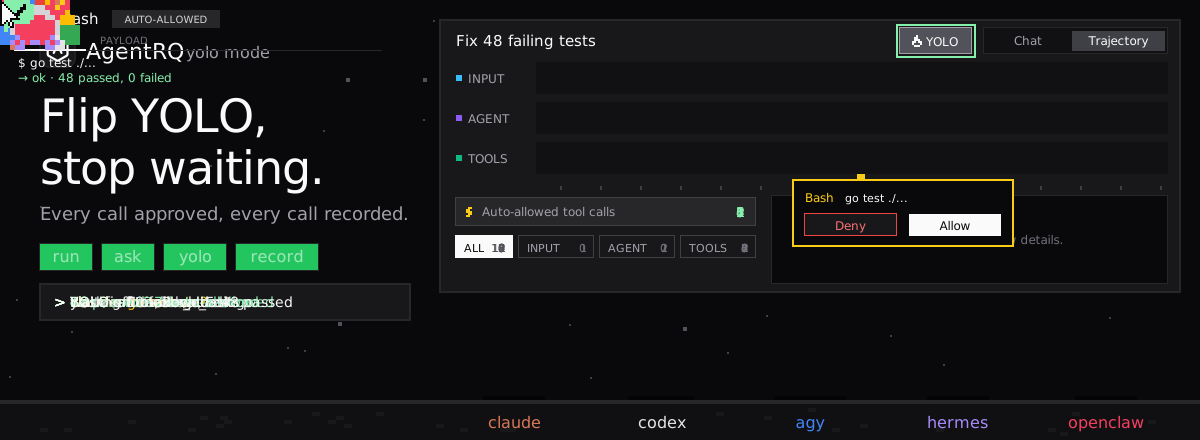
Harn's Session Modes
harn serve acp advertises four session modes. Each maps to one of Harn's autonomy tiers, which the runtime enforces at every side effect:
| Mode | Autonomy tier | What happens to side effects |
|---|---|---|
| Ask (default) | act_with_approval |
asks before each one |
| Architect | suggest |
blocked: read-only planning |
| Code | act_auto |
run without asking |
| Shadow | shadow |
blocked: proposals only |
So Code is the YOLO mode, Ask is the supervised mode, and Architect and Shadow are stricter than either. Pick Code from your editor's mode selector to turn YOLO on for a session, and switch back to Ask to turn it off. The mode applies from the next prompt.
What Code Mode Does Not Turn Off
Approvals are only one of Harn's boundaries. Its docs describe a capability policy that decides which directories a run may read and write, and an operating-system sandbox for the processes it spawns: Landlock or bubblewrap on Linux and sandbox-exec on macOS. They say these stay in force alongside the approval policy. Windows has no OS sandbox, so spawned processes run unconfined there.
The Halfway Option
For .harn scripts run with harn run, the narrow alternative is --approve-risky <operation>, which authorizes one named risky operation, such as git.push, for that run only. Inside Harn code, autonomy policies can also set a tier per action, for example running automatically but asking before fs.write.
How to Enable YOLO Mode in Harn Through AgentRQ
Harn's Code mode covers a whole session in one editor. AgentRQ lets you make the decision per task, and answer from somewhere other than the editor.
Approve From the AgentRQ Task Instead of the Terminal
Connect Harn to an AgentRQ workspace through the ACP Gateway (Harn setup guide). Log in once, then start the bridge:
Sessions start in Ask mode, which is the one AgentRQ wants: Harn sends each side effect as an ACP permission request. If a session moves to Code, AgentRQ switches it back to Ask.
Each permission request now shows up in the AgentRQ task on the web, on your phone or in Slack, together with what Harn is about to do. Harn itself only offers allow and reject for a single call, but AgentRQ's Always Allow still works, because AgentRQ remembers it and answers the next matching request for you. Answer Allow Once, Always Allow or Deny from wherever you are, and Harn carries on. If nobody answers within 30 minutes, the gateway cancels the turn instead of guessing. Change the limit with --permission-timeout.
Turn On YOLO for One Task
Flip the YOLO toggle on a task, or when you create it, to put just that task in YOLO mode. Every permission request in it is approved automatically and Harn never waits, while every other task in the workspace still asks. Scheduled tasks, event triggers and workflow steps have the same switch, so an unattended job can run in YOLO while your interactive work stays supervised.
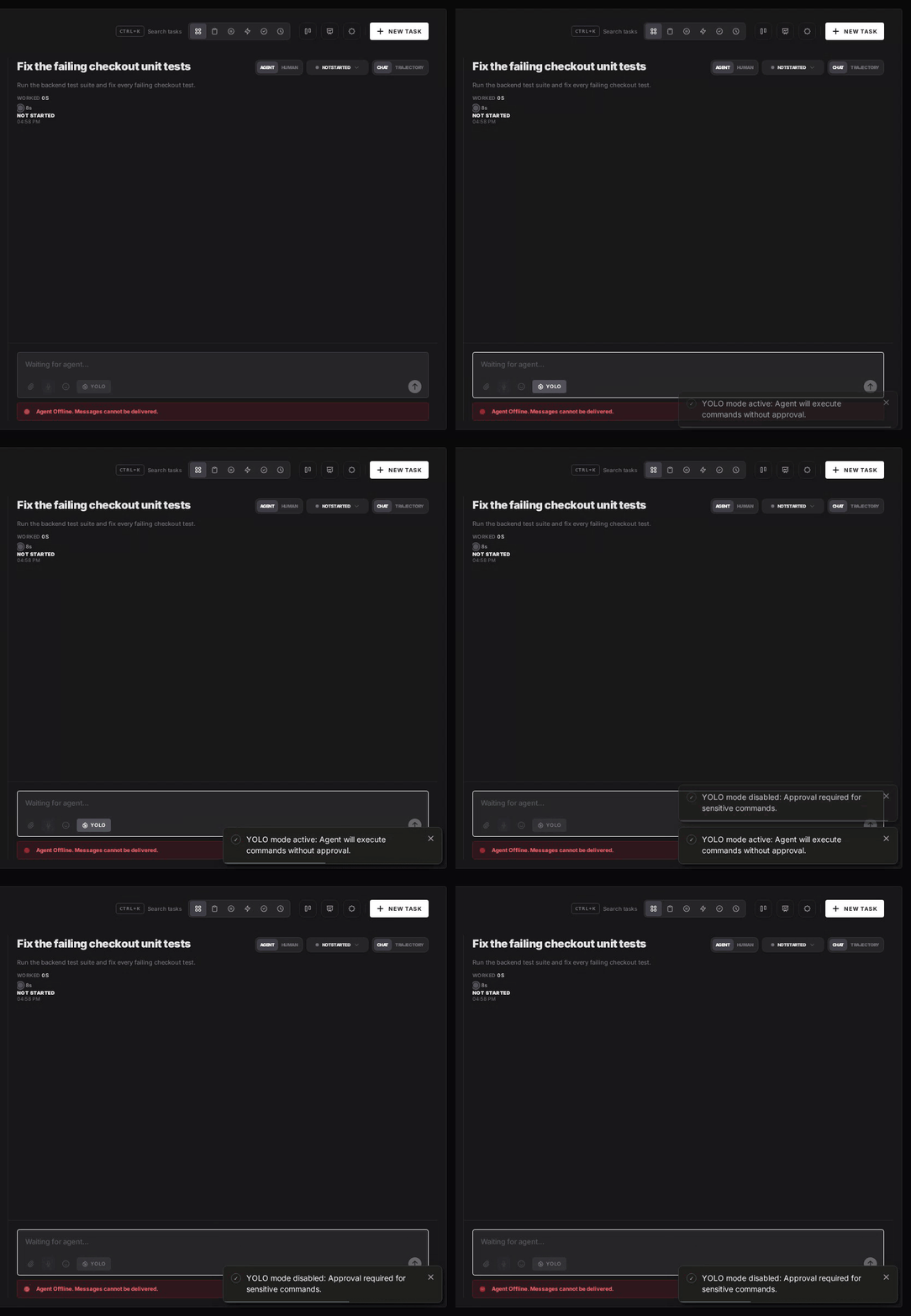
Turn YOLO On or Off in Workspace Settings
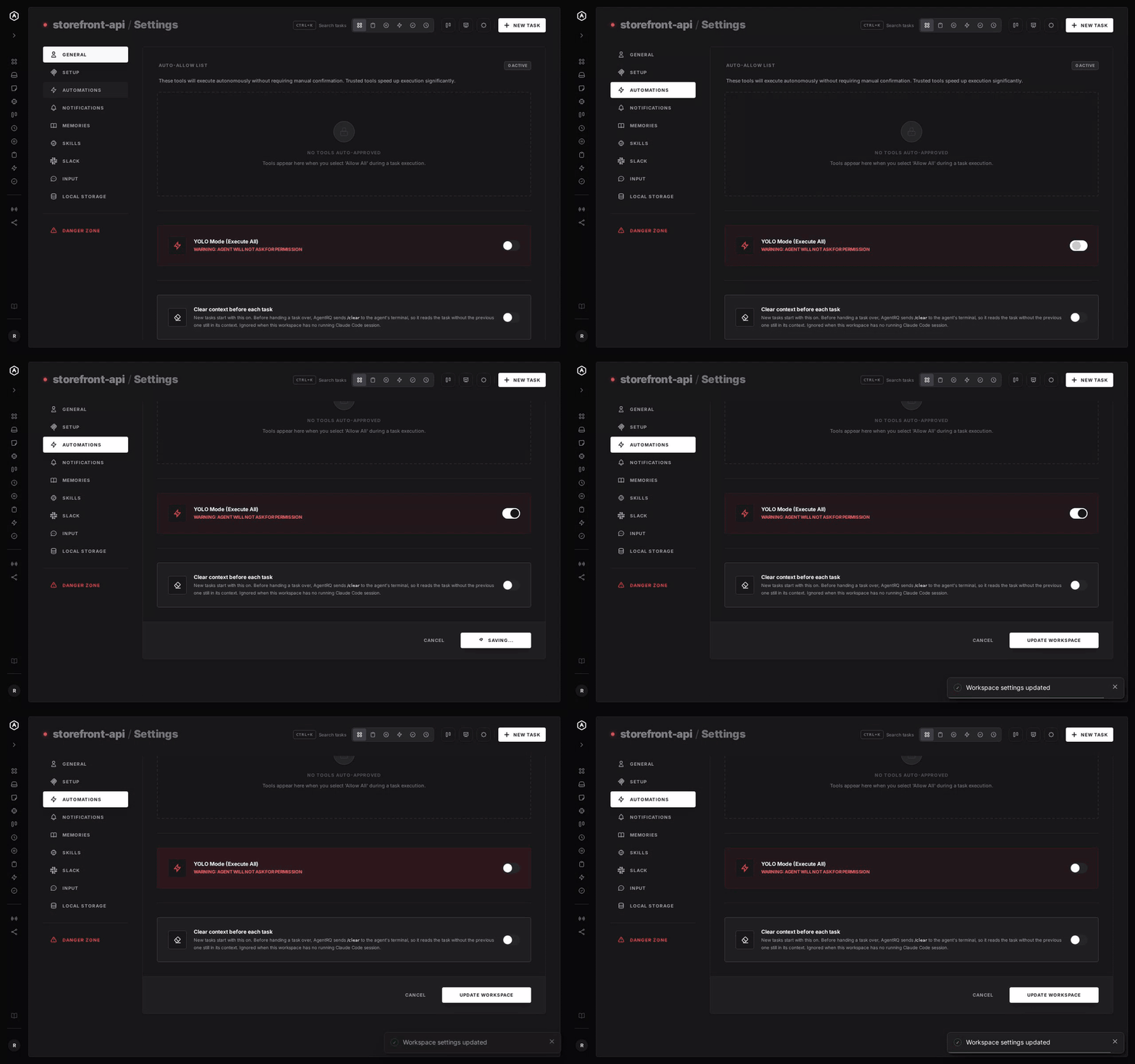
To make YOLO the default for a whole workspace, open the workspace, go to Settings, choose the Automations tab and flip YOLO Mode (Execute All). Click Update Workspace to save. Switch it off the same way. The switch is off by default, and every permission request in the workspace is approved automatically while it is on.
A Safe YOLO Setup for Harn
- → Allow the boring tools, not everything. Always Allow adds the tool to the workspace's auto-approved list, so the routine calls stop asking and the risky ones still do. Prune that list in workspace settings now and then.
- → Leave the workspace-wide switch off. Turn YOLO on per task instead, so it never outlives the job you trusted.
- → Keep Harn's sandbox on. YOLO in AgentRQ only answers approvals. Harn's directory policy and process sandbox still apply, so leave them at their defaults rather than widening them for a YOLO run. On Windows, use a VM or a throwaway clone instead.
- → Commit first. Start every YOLO task from a clean git tree, so any change is one
git resetaway. - → Read the record. The tool call history lists every call the task made, including the ones that were auto-approved.
FAQ
Does Harn have a YOLO mode? Not as a flag. The Code session mode runs side effects without approval, which is the same idea.
What is Harn's default session mode? Ask. It holds every side effect for approval until you switch to Code.
What do Harn's Architect and Shadow modes do? Both block side effects. Architect is read-only planning, and Shadow only records proposals.
Does Harn have a sandbox? Yes. Harn confines a run's file access by policy and sandboxes the processes it spawns on Linux and macOS. Windows has no OS sandbox.
How do I approve Harn tool calls remotely? Connect Harn to AgentRQ through the ACP Gateway. Its permission requests show up in the task on the web, your phone or Slack.
For every other agent, see what YOLO mode is and how to turn it on in every coding agent.